Vibe Coding: Create a Web App
🎬 Video
This is where the building starts. By the end of this chapter, you will have a working web app running locally on your computer - something you can open in a browser, see on screen, and continue building on in the next steps.
What you are building
The app is called Decision Log - a simple tool for recording decisions made in a project: what was decided, why, and when.
It will be a web app, which means it runs in a browser like any website. You will also make sure it looks good on a phone - the layout will adapt to smaller screens automatically. You do not need to worry about making it installable as a phone app (that is a feature called a PWA, or Progressive Web App). For our purposes, it just needs to work well in a mobile browser, and the skill handles that automatically.
What the skill is going to do
The vibe-create-web-app skill will set up the complete starting structure for your app - all the files and folders a modern web app needs. You just need to tell it the name of your app and a couple of preferences, and it does the rest.
Specifically, it will:
- Create a React app - React is the tool that builds the visible parts of your app (buttons, tables, forms)
- Set up Tailwind CSS - a styling system that makes it straightforward to make things look good without writing custom stylesheets
- Apply AFRY's brand guidelines (if you want it to) - the right fonts, colours, and spacing so the app looks consistent with other AFRY tools
- Start a local development server so you can see the app in your browser immediately
You do not need to understand any of these technologies to continue. Copilot knows how they fit together.
Steps
1. Open Copilot in plan mode
In VS Code, open the Copilot chat panel. Switch to plan mode. Select the model Claude Sonnet 4.6 from the model picker at the top of the chat panel - this is the model that the vibe coding skills has been benchmarked against (though others work well too). Switch to plan mode.
In your own words, tell Copilot what you want to build. For example:
"I want to build a Decision Log app. It should let me record decisions made in a project, with a title, a description of what was decided, the reason for the decision, and the date. Each decision should be editable and deletable. The app should work well on mobile."
Feel free to add more detail or change the description to match what you actually want. The more context you give, the better the plan will be.
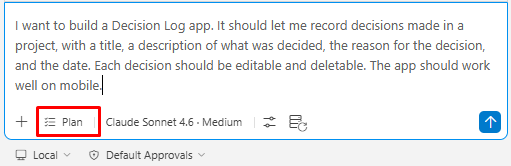
You are in plan mode - Copilot will think and respond with a plan, but will not change any files yet. Read through it and make sure it matches what you had in mind. If something is missing or wrong, just say so and it will revise the plan.
2. Answer the skill's questions
The skill will ask you some short questions before it starts:
| Question | What to answer |
|---|---|
| What is the name of your app? | Decision Log |
| Should users be able to install this app on their phone, tablet, or desktop? | No, just a web app |
| Should this app use AFRY's official brand colors, typography, and design guidelines? | Yes, apply AFRY brand |
Answer each one and the skill will proceed automatically.
Note - if the assistant asks you where data should be stored, select an option for "in the browser" - we will add a real database later.
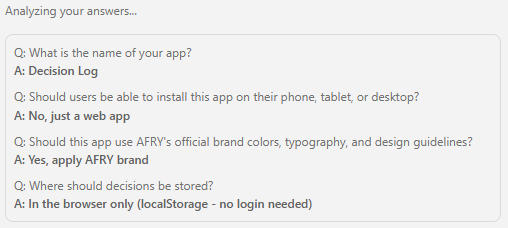
3. Start implementation
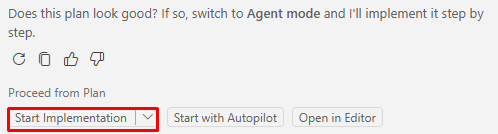
Read through the plan. You can open the plan and edit it yourself if you are not happy, or you can chat with the assistant to update it for you. When the plan looks right, click Start implementation (or switch to Agent yourself and type "looks good, go ahead"). Copilot will switch from planning to building.
At this point it will look for the right skill to use. Watch for it to mention vibe-create-web-app - that is the skill responsible for setting up the app. If it does not find it automatically, you can nudge it:
"Please use the vibe-create-web-app skill."
4. Watch it build
Copilot will now set up the project files and install the required packages. This takes a minute or two. When the assistant needs to run scripts, or do other things like editing configuration files, it will ask your permission.
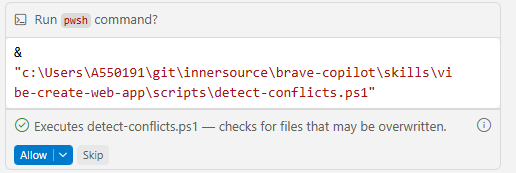 When it is done, it will tell you the app is ready.
5. Launch the app
Ask Copilot to open the app for you:
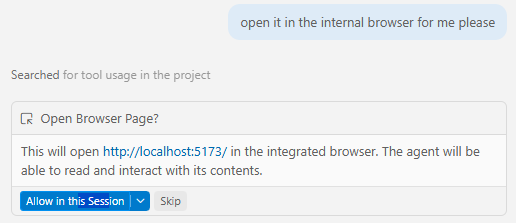
It will start the development server and open the app inside VS Code. You can also open the link in your own browser, but having the app in the internal browser allows Copilot to take screenshots and to navigate to find errors.
6. If there are errors
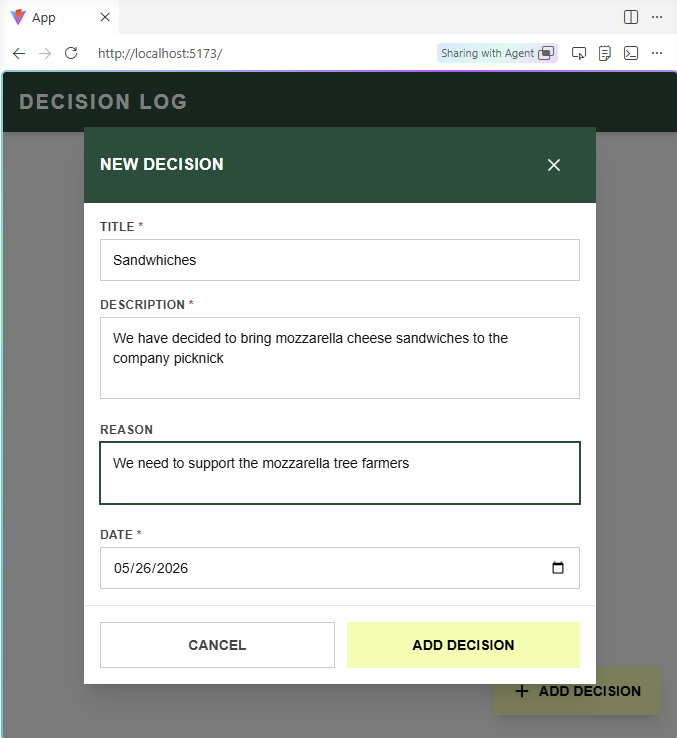
Even with skills, it is possible that Copilot makes mistakes. There might be errors in the configuration files, compilation problems or the app doesn't work as intended. In this case, you need to tell the agent what went wrong. You can make screenshots and paste in the chat, or ask Copilot to do so. Sometimes you must open the developer tools and give it information from the debugging tools - Copilot will guide you on how to do this.
What just happened
Copilot set up a complete modern web app project in your repository folder. The key files are:
| What | Where |
|---|---|
| The main app component | src/App.tsx |
| Styling | Tailwind CSS, already wired up |
| Brand guidelines | Applied by the AFRY brand skill |
| Dev server config | vite.config.ts |
Every time you save a file, the browser will update automatically - no refreshing needed.
You are ready to continue with 16.4 - Deploy to Azure.