Getting Started: Skills
What is a skill?
Large Language Models are probabilistic. Everytime you ask something, the assistant will first reason on how to solve the task. Because of the randomness, the plan will never be exactly the same and oftentimes you need to correct the assistant when it derails or do things you don't want.
A skill is a text file that packages a set of instructions for Copilot. You invoke it by mentioning it in a prompt - Copilot reads the instructions and applies them to whatever you are working on.
With skills you can prepare the planning step for the agent - it will already have a script for it to follow, resulting in a more deterministic behaviour.
Skills vs. custom instructions
Both skills and custom instructions are markdown files that shape how Copilot behaves. The difference is when they apply:
| Custom instructions | Skills | |
|---|---|---|
| When active | Always - loaded automatically in every conversation | On demand - only when you mention them |
| Scope | Sets the baseline behaviour for a project or user | Applies expert knowledge to a specific task |
| Example | "Always use TypeScript. Never use var." |
"Apply AFRY brand colours and typography to this presentation." |
Use custom instructions for standing rules. Use skills for specialised tasks you reach for occasionally.
Example: afry-brand-style-guide
The afry-brand-style-guide skill is a single markdown file that contains AFRY's full brand specification - primary colours, typography, layout rules, and logo usage. To apply it, you just reference it in a prompt:
"Using the afry-brand-style-guide skill, create a styled HTML page for this content."
Copilot reads the skill, learns the colour palette and typography rules, and produces output that matches the AFRY brand - without you having to repeat any of those details yourself.
Where skills live and how Copilot finds them
Skills are plain .md files with a short section at the top (called the 'frontmatter'). VS Code finds them through its customizations system. You tell VS Code where to look by adding the folder to your settings.
- Open the settings page from File > Preferences > Settings
- Search for "skills" in the search bar
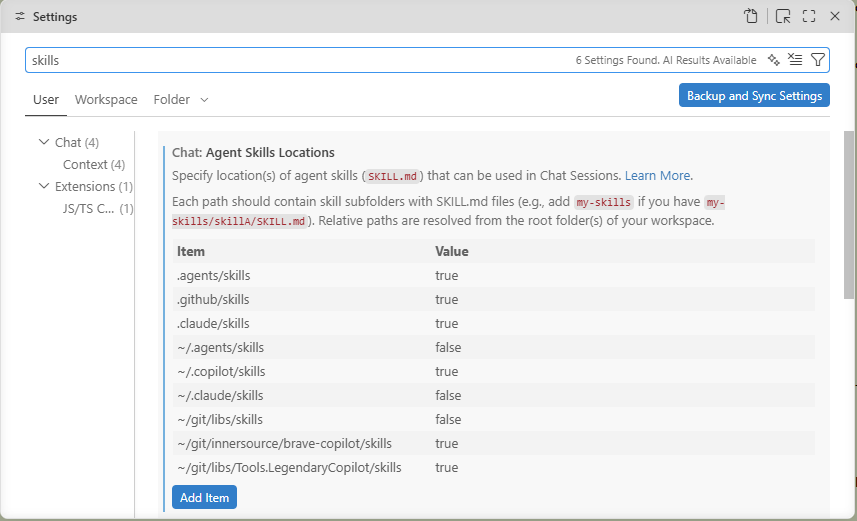
- Add the folder where your skill folder is located.
Note The skills folder must somewhere inside your user folder, hence the ~ prefix in the path.
Once a skills folder is registered, every .md file in it becomes available as a skill. Copilot can also discover and suggest relevant skills automatically based on your prompt.
A skill file looks like this:
---
name: my-skill-name
description: One-line summary of what this skill does and what phrases might trigger it.
---

# My Skill

## Instructions

Write the instructions here. Use clear, direct language.
Copilot will follow these instructions when the skill is invoked.
The description field is important - Copilot uses it to decide whether the skill is relevant to a given prompt.
Brave Copilot - AFRY's shared skill library
Brave Copilot is AFRY's inner-source repository of ready-to-use skills, custom instructions, and agents. It contains skills for everyday AFRY work, such as
| Skill | What it does |
|---|---|
afry-brand-style-guide |
Applies AFRY's official brand colours and typography |
powerpoint-sketch-writer |
Drafts an AFRY presentation as numbered slide markdown files |
powerpoint-deck-builder |
Builds a real .pptx from those slide files using the AFRY template |
Full detail on Brave Copilot is covered in section 12.
Writing your own skill
You don't need to write any code to create a skill - just a markdown file. The fastest way is to let Copilot help you write it:
- First work together with Copilot to achieve what you want the skill to do. You might write
Please extract all the project references from my time report in this Excel file, then write a comment for each project that summarizes what I've done.
- Copilot might generate Powershell scripts to extract the information
- The script doesn't work initially so you ask it to fix it.
-
Copilot generates the summaries, but they are not in the language you prefer, etc. etc.
-
When you finally arrive at something you are happy with, type
/create-skill Please create a skill that allows me to generate a summary of what I've done from a time report Excel file 3. Copilot will generate the skill and place it in your home folder (in ~.copilot/skills). 4. In a new chat, type Please summarize what I've done for each project 5. Copilot will find the skill and perform the steps 6. If there are mistakes in the instructions, you might need to go back to the earlier chat and tell Copilot what went wrong when you tried to use the skill.
Tips for good skills
- Be specific in the description - this is what Copilot uses to decide whether to invoke the skill automatically
- One purpose per skill - a skill that does one thing well is more reusable than one that tries to do everything
- Use examples in the instructions - showing Copilot an example of the desired output format is more reliable than describing it in abstract terms
- Test by invoking directly - reference the skill by name in a prompt and check the output before sharing it with your team