Vibe Coding: Create Your Repository
🎬 Video
Before you write a single line of code, you need a home for it. This chapter walks you through creating a GitHub repository for the Decision Log app and cloning it to your computer.
The whole thing takes about five minutes.
What you are setting up
You will create a repository called yourname-decision-log in an AFRY GitHub organisation, with Privatevisibility. Internal means every AFRY employee with a GitHub account can browse it - good for a learning project that others can learn from too. The name prefix is there because many people on the trail will build the same app, and name collisions on GitHub are not allowed.
Step 1 - Create the repository on GitHub
- Open github.com and sign in with your AFRY account
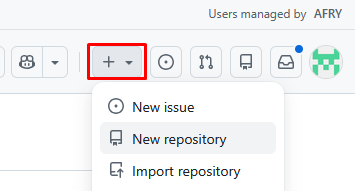
- Click the + icon in the top-right corner and choose New repository
- Set the Owner to your division's AFRY organisation (not your personal account - personal repos cannot use GitHub Actions for deployment). If you are unsure which org to use, check the table in 16.0 - GitHub and Git
- Set the Repository name to
exercise-decision-log-yourname, replacingyournamewith your first name in lowercase - for exampleexercise-decision-log-erik - Set Visibility to Private
- Leave everything else at its default
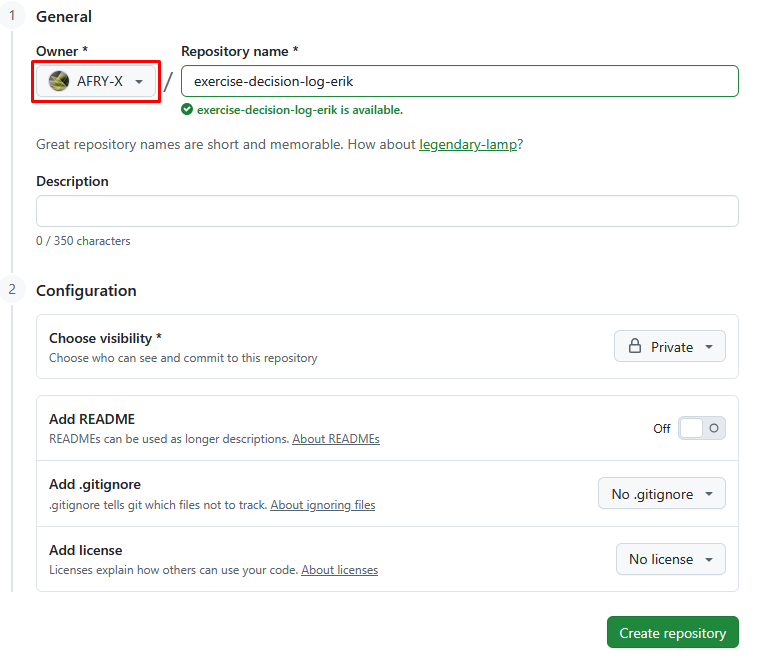
- Click Create repository
Step 2 - Copy the repository URL
Once the repository is created, you will land on its main page.
- Click the green Code button
- Make sure HTTPS is selected (not SSH)
- Click the copy icon next to the URL

Keep this URL handy for the next step.
Step 3 - Clone the repository in VS Code
Cloning downloads the repository to your computer and links it to the remote on GitHub.
- Open the Command Palette in VS Code with
Ctrl+Shift+P - Type
cloneand select Git: Clone

- Paste the URL you copied and select Clone from URL

- A folder picker opens - choose where you want the project to live. A folder like
C:\Users\YourName\git\is a good convention as it keeps all your repositories together - When cloning finishes, VS Code asks whether to open the repository - click Open
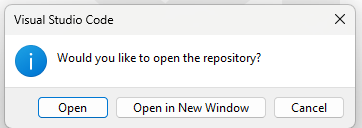
VS Code will reload with the repository folder open (it is empty).
Verify
Open a terminal in VS Code from the menu Terminal > New Terminal. In the window that appears, type:
You should see:
If you see that, the repository is cloned, connected to GitHub, and ready to go.
You are ready to start 16.3 - Create a web app.