Introduction
When you chat with GitHub Copilot, it can do more than just generate text - it can take actions. It can read files, search the web, run terminal commands, and query databases. Each of these capabilities is a tool.
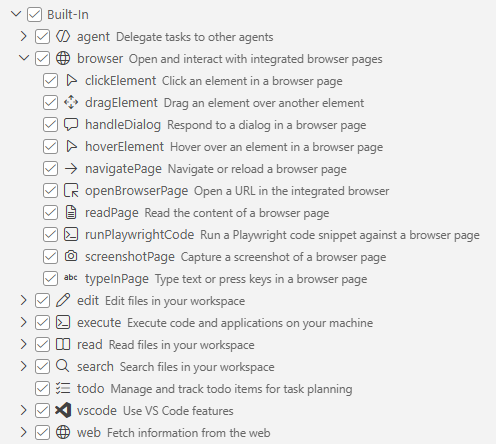 By default, Copilot comes with a set of built-in tools (file editing, terminal access, web search, etc.), but the real power comes when you connect external tools - and that's where MCP comes in.
What is MCP?
MCP (Model Context Protocol) is an open standard that lets AI assistants connect to external systems in a uniform way. Think of it as a USB-C port for AI: instead of building a custom integration for every service, MCP provides one protocol that works across all of them.
An MCP server is a small program that exposes tools to Copilot. For example:
- A GitHub MCP server lets Copilot create pull requests, search issues, and manage repositories
- A database MCP server lets Copilot query tables and inspect schemas
- A Slack MCP server lets Copilot send messages and search channels
- A file transfer MCP server lets Copilot move files between systems
When you connect an MCP server, its tools show up in Copilot's tool list. The AI then decides when to use them based on your prompt - you don't need to call them manually.
Why does this matter?
Without MCP, every AI assistant would need its own custom integration for every service - and those integrations wouldn't be reusable across different AI tools. With MCP:
- One server works everywhere - the same MCP server works in VS Code, Claude, Cursor, JetBrains, and 100+ other clients
- You stay in your flow - instead of switching between apps, you ask Copilot to do it
- It's composable - you can connect multiple MCP servers and Copilot will use them together in a single conversation
How it works
- You add an MCP server to VS Code (either a local program or a remote URL)
- Copilot discovers the tools the server provides
- You write a prompt like you normally would
- Copilot picks the right tools and asks for your approval before running them
- The tools execute and return results that Copilot uses to continue the conversation
The rest of this guide walks through each step with hands-on examples.
AFRY MCP servers
There are several MCP servers available for AFRY related tasks. They allow you to generate images, build Powerpoint deck slides, find information about your organisation or to process files.
[List of servers]
Local and Remote MCP servers
MCP servers come in two flavors. Local servers run as a process on your machine. They typically require a programming environment such as NodeJS or Python. VS Code starts them automatically. These are great for tools that need access to your local files, Git repos, or development environment. Remote servers are hosted on the internet and accessed over HTTP. You connect to them with a URL, and they often require authentication (e.g. OAuth). Remote servers are ideal for shared services like company APIs, cloud platforms, or SaaS integrations where the tool doesn't need to run on your laptop.
How to install MCP servers
The MCP servers are configured in a file called mcp.json. Depending on the server the actual configuration will differ - local servers need a path to where they are installed, some servers require authentication parameters etc. The documentation for the MCP server will tell you how to install it. Also, often there is an "Install in VSCode" button that allows you to add the configuration automatically.
Example: Manually installing the AFRY Foundations MCP server
In VS Code, bring up the command palette by pressing CTRL+SHIFT+P.
Type "open mcp" in the search bar, then select Open User Configuration
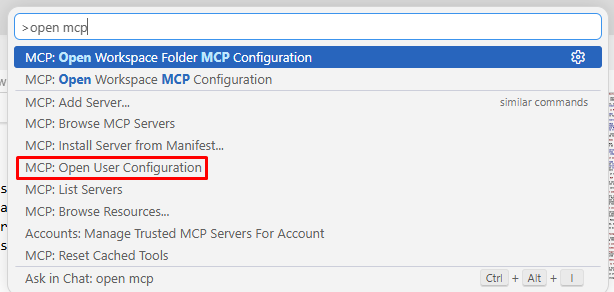
If the file is empty (containing only {} ), replace the contents with:
Verifying the installation
Open the Command Palette and run MCP: List Servers. Your server should appear with a green status indicator. If there's a problem, selecting the server shows the error log from the server process.
How to use MCP servers
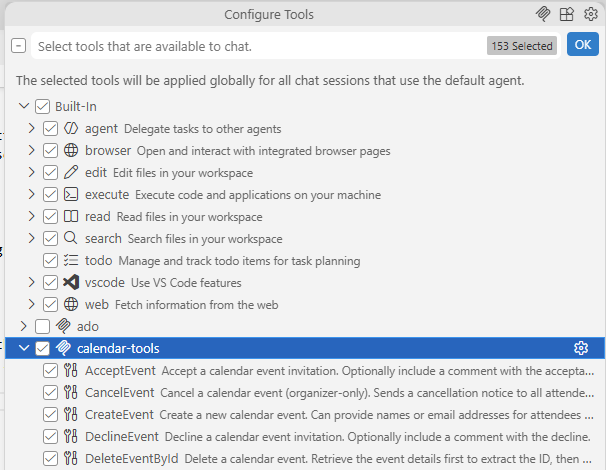
The Configure tools button let's you select which tools are visible to the agent.
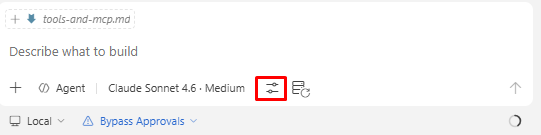
When the number of available tools grows large it becomes more difficult for the agent to know which tool to use in different situations. It is therefore good practise to select only the tools that are required for a specific task.
Where to find MCP servers
There are hundreds of MCP tools created by both companies and enthusiasts. Be aware though that when you connect an MCP server you do not really know where the data is going. Only install servers that you trust.
For a list of MCP servers that are developed and maintained by AFRY, visit []
For a listing of MCP public servers, visit [https://mcpservers.org/]